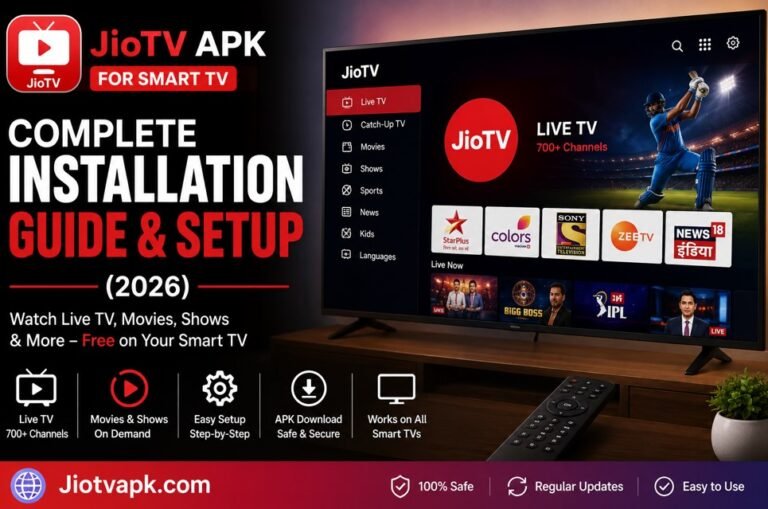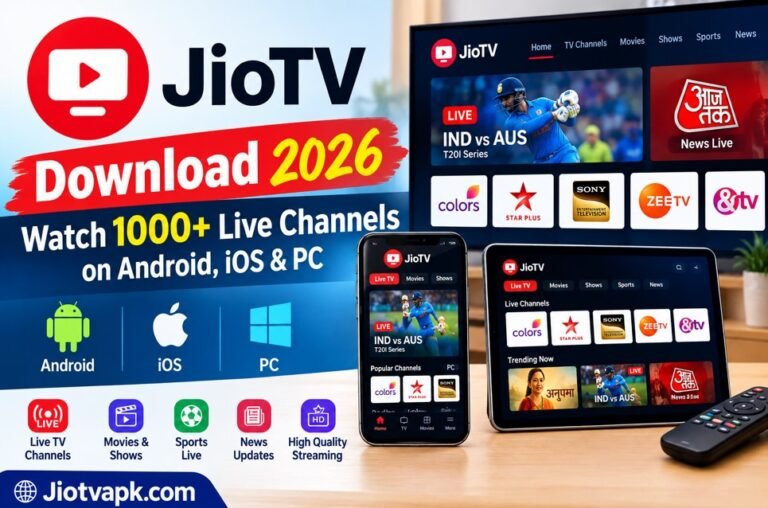
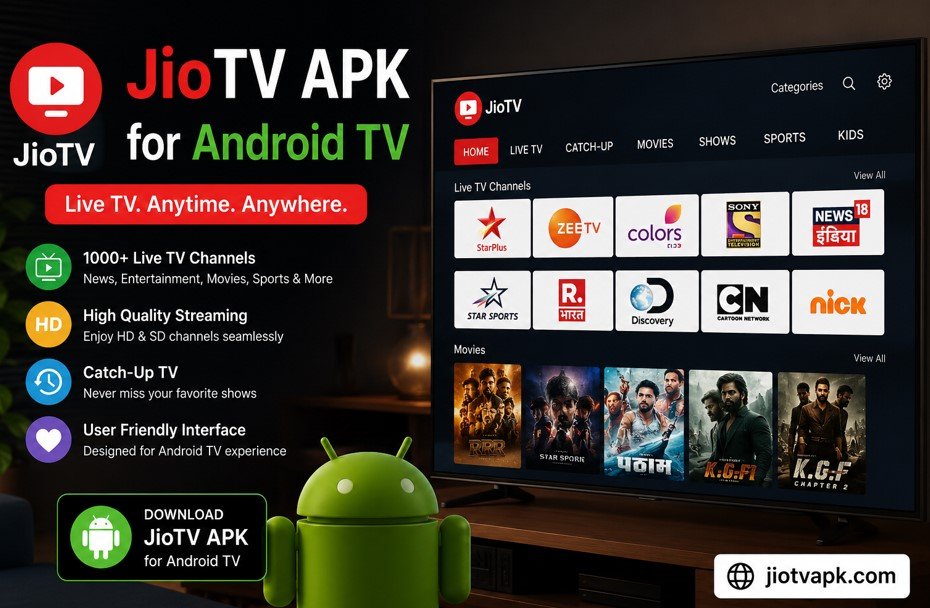
JioTV APK for Android TV: Installation Guide (2026)
Television consumption in India has undergone a massive transformation. As traditional cable and DTH bills continue to rise, millions of viewers are cutting the cord and shifting to smart streaming. Reliance Jio has been at the forefront of this digital revolution, offering its users access to a staggering library of over 1,000 live television channels completely free of charge.
However, there is a major catch. If you want to enjoy this incredible platform on your large living room screen, you will quickly realize that the official Google Play Store on your smart television does not list the application. The telecom giant specifically designed its live streaming platform for mobile phones and tablets, reserving the large-screen experience for users who purchase their proprietary set-top boxes.
But because smart televisions operate on an open-source operating system, you are not entirely locked out. By using a few simple workarounds, you can successfully bypass these restrictions. In this comprehensive guide, we will break down exactly how to download, install, and optimize the JioTV APK for Android TV. Whether you are a beginner looking for a basic setup or a tech enthusiast wanting a flawless remote-controlled experience, this article covers everything you need to know to get your favorite live sports, news, and daily soaps running on the big screen.
What is JioTV and Can You Use It on Android TV?
JioTV is a premier live streaming application developed by Reliance Jio Digital Services. It provides active subscribers with free access to a massive catalog of entertainment. The platform currently hosts more than 1,000 live broadcast channels across 15+ regional languages. From high-definition live cricket on Sports18 to breaking news on Aaj Tak and daily dramas on Colors HD, it serves as a complete replacement for a traditional cable connection. Additionally, it offers a seven-day “catch-up” feature, allowing you to replay shows broadcasted over the past week.
Despite its immense popularity, you cannot natively download the app directly to your smart television. Reliance Jio strategically limits the standard application to mobile devices. If you want a built-in television experience, the company requires you to use JioTV+, an entirely separate interface that comes exclusively bundled with their JioFiber or JioAirFiber hardware.
However, you absolutely can use the mobile version on your television. Because Android TV shares the same core framework as your smartphone, it is fully capable of running mobile applications. To do this, you simply have to manually install the installation file—known as an APK (Android Package Kit)—using a process called sideloading.
Why You Should Install JioTV on Your Smart TV
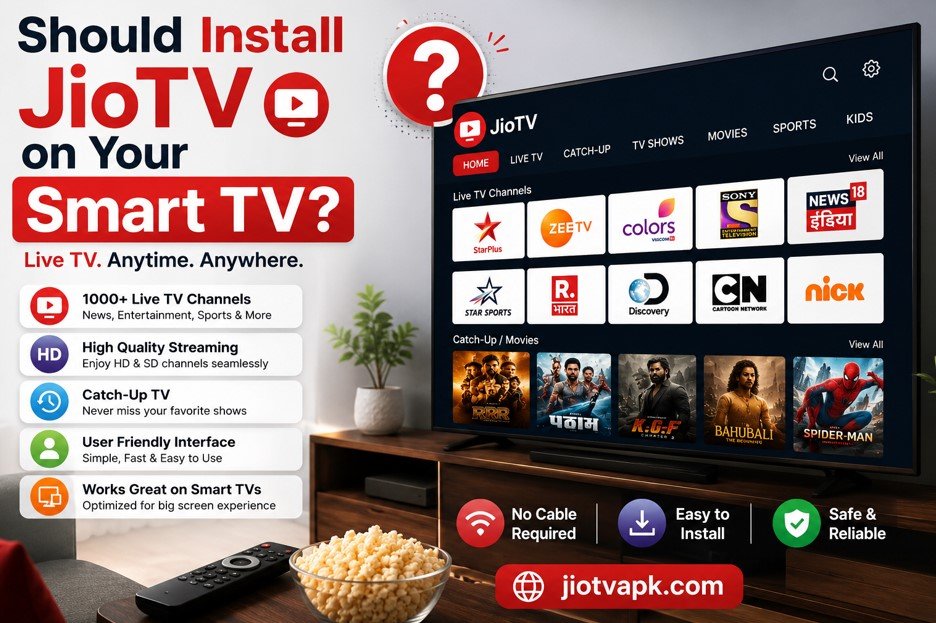
If the installation requires a few extra steps, you might wonder if the effort is actually worth your time. The answer is a resounding yes. Here is why installing the JioTV APK for Android TV is a game-changer for Indian households:
- Massive Cost Savings: A standard DTH connection offering HD sports and entertainment channels easily costs anywhere from ₹400 to ₹700 per month. By utilizing your existing mobile plan, you effectively eliminate this monthly television bill.
- Live Sports on the Big Screen: Watching high-adrenaline events like the Indian Premier League (IPL), World Cup cricket, or European football is best experienced on a large display. The app provides direct access to premium sports networks at no extra charge.
- Deep Regional Content: India is incredibly diverse, and traditional cable packages often charge extra for out-of-state regional channels. JioTV includes hundreds of regional networks, covering languages like Tamil, Telugu, Marathi, Kannada, and Bengali by default.
- Seven-Day Catch-Up: You never have to worry about missing your favorite prime-time television serial. The built-in DVR-like capability lets you seamlessly replay any program broadcasted in the last seven days directly on your TV.
Essential Requirements Before Installation
Before we dive into the actual installation steps, you must gather a few necessary tools. Having these ready will save you from frustration halfway through the process.
What You Will Need:
- A Compatible Device: Any smart television running the Android TV or Google TV operating system. This includes popular brands like Sony, Xiaomi, OnePlus, Realme, and Vu. Alternatively, you can use a streaming stick like the Amazon Fire TV Stick or Mi Box 4K.
- An Active Jio SIM Card: The application requires a valid Reliance Jio mobile number to generate a One-Time Password (OTP) for login verification.
- Utility Applications: You will need a file transfer app like Send Files to TV, a file manager, and a screen rotation tool. We will explain how to get these in the upcoming steps.
- Navigation Hardware/Software: Because the application is built for touchscreens, your standard TV remote will struggle to navigate the menus. You will either need a physical computer mouse (USB or Bluetooth) or a virtual Mouse Toggle application.
Method 1: Sideloading the JioTV APK on Android TV (The Standard Way)
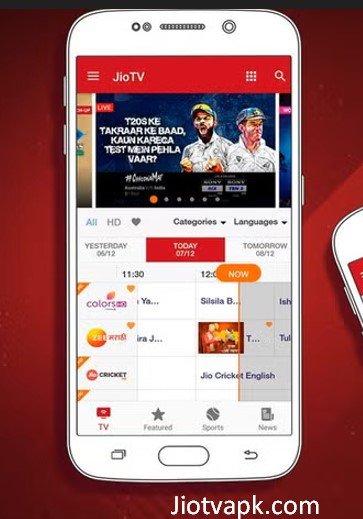
Sideloading simply means installing an application outside of the official Google Play Store. This is the most common method used to get mobile apps running on smart televisions. Follow these exact steps carefully.
Step 1: Enable Unknown Sources on Your TV
By default, smart televisions block the installation of third-party files to protect you from malware. You must disable this lock.
- Use your remote to navigate to the Settings gear icon on your TV home screen.
- Scroll down to Device Preferences (or ‘System’ on some newer models).
- Select Security & Restrictions.
- Find the Unknown Sources option and toggle it to the ‘On’ position.
Step 2: Download the Required Utility Apps on Your TV
Open the Google Play Store on your smart television and search for two essential applications:
- Send Files to TV (SFTV): This app allows you to wirelessly beam files from your phone to your TV.
- Solid Explorer (or any File Manager): This allows you to browse the internal storage of your TV to find the file you just transferred. Install both of these applications directly onto your television.
Step 3: Download the JioTV APK on Your Smartphone
Now, pick up your Android smartphone.
- Open your web browser (like Google Chrome).
- Search for a trusted repository like APKMirror or Uptodown.
- Search for the latest version of the JioTV APK.
- Download the installation file to your phone’s local storage. Ensure you are downloading the standard APK file and not an XAPK, as standard APKs are much easier to install on televisions.
Step 4: Transfer the APK File to the TV
- Install the Send Files to TV application on your smartphone via the Google Play Store.
- Ensure both your television and your smartphone are connected to the same Wi-Fi network.
- Open the SFTV app on your television and select Receive.
- Open the SFTV app on your smartphone and select Send.
- Navigate to your phone’s ‘Downloads’ folder, select the APK file, and choose your television from the radar screen. The file will transfer in seconds.
Step 5: Install the Application
- On your television, open the Solid Explorer File Manager you downloaded earlier.
- Navigate to the Downloads folder within the internal storage.
- Locate the JioTV installation file and click on it.
- Select Install. Once the process is complete, click Open.
Fixing Screen Orientation and Remote Navigation Issues
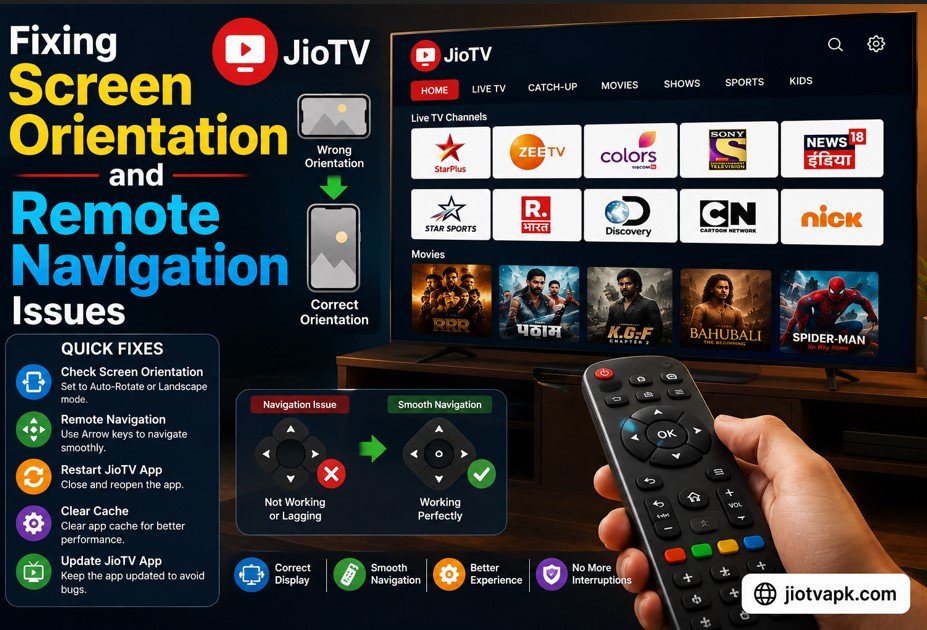
If you completed Method 1, you will immediately notice two massive problems when you open the app: the screen is sideways (portrait mode), and your TV remote does nothing when you press the directional arrows. Here is how to fix both issues permanently.
The Screen Orientation Fix
Because the application expects to be running on a vertical mobile phone, it forces your widescreen television into a stretched, sideways layout.
- On your smartphone, use your browser to search for and download the Set Orientation APK.
- Transfer this file to your television using the exact same ‘Send Files to TV’ method we used earlier.
- Install and open the Set Orientation app on your TV.
- A dropdown menu will appear. Select Landscape.
- Press OK. Now, whenever you open a mobile application on your television, it will automatically stretch cleanly to fit your horizontal display perfectly.
The Remote Navigation Fix
The mobile app relies on finger swipes and screen taps, not the up/down/left/right clicks of a standard D-pad remote. To select channels, you must introduce a mouse pointer to the screen.
Option A (Hardware): Plug an inexpensive wireless computer mouse receiver into the USB port on the back of your television. You can now sit on your couch and point and click on channels with ease.
Option B (Software): Download an application called Mouse Toggle for Android TV. You will need to sideload this app just like the others. Once installed and configured in your TV’s accessibility settings, rapidly pressing the “Play/Pause” button on your TV remote will summon a virtual mouse cursor onto the screen. You can then use your remote’s directional arrows to move the cursor like a computer mouse.
Method 2: Watching JioTV via Kodi Add-on (Best for TV Remotes)
If the idea of using a mouse cursor on your television feels frustrating, there is a much more elegant solution. By utilizing a media center software called Kodi, you can enjoy a custom-built interface that works flawlessly with your standard television remote control.
Step 1: Install Kodi on Your TV You do not need to sideload this. Simply open the Google Play Store on your smart TV, search for Kodi, and hit install.
Step 2: Enable Unknown Sources in Kodi Open Kodi. Navigate to the gear icon at the top left to open Settings. Go to System, scroll down to Add-ons, and turn on Unknown Sources. Accept the warning prompt.
Step 3: Add the Repository Source Go back to the main Settings menu and select File Manager. Click on Add Source. In the path box, type the URL for a trusted Indian OTT repository (the most famous being the BotAllen repository). Name the source “BotAllen” and click OK.
Step 4: Install the Add-on Return to the Kodi home screen and click on Add-ons on the left menu. Click the small open box icon at the top left (the Package Installer). Select Install from Zip File, find the “BotAllen” source you just added, and install the repository zip file. Next, select Install from Repository. Open the BotAllen repository, navigate to Video Add-ons, find JioTV, and click Install.
Step 5: Log In and Enjoy Once installed, open the video add-on. A prompt will appear asking for your mobile number. Enter your registered mobile number using the on-screen keyboard. You will receive an OTP on your smartphone. Enter the OTP into Kodi. You will now have a beautifully categorized, remote-friendly grid of all live channels.
Method 3: Using JioTV Go with TiviMate IPTV Player (Advanced)
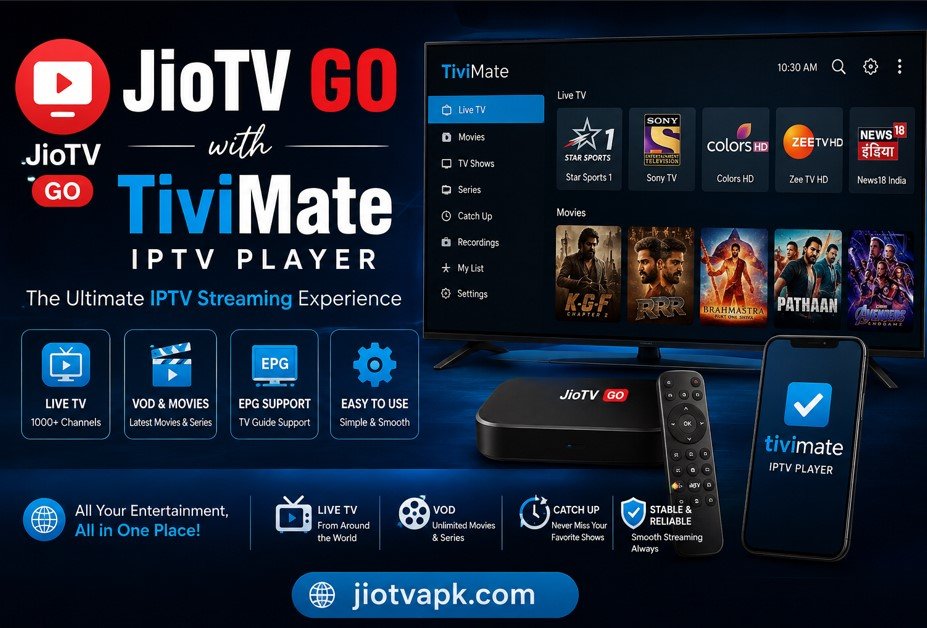
For hardcore tech enthusiasts who want the ultimate, cable-like zapping experience complete with an electronic program guide (EPG), JioTV Go is the golden standard. This method bypasses official apps entirely and extracts the raw streaming data into an IPTV playlist.
Step 1: Set Up the Local Server JioTV Go requires a local server to run. You can run this on a spare Android phone or directly on the Android TV using an app called Termux (available on the F-Droid store). You must execute the automatic install script provided on the official JioTV Go GitHub repository.
Step 2: Generate the Playlist Once the script is running, open a web browser on your phone and go to http://localhost:5001/ (or the specific IP address of the device running the server). Log in with your mobile number and OTP. The server will generate a custom M3U playlist link.
Step 3: Configure TiviMate Download TiviMate IPTV Player from the Google Play Store on your television. Open the app, select Add Playlist, and enter the M3U URL generated by your local server. Add the EPG source link provided in the GitHub documentation. The result? A lightning-fast, highly premium television guide interface that looks identical to expensive cable box setups, with instant channel switching and full remote control support.
Comparison: Mobile APK vs. Kodi vs. JioTV Go
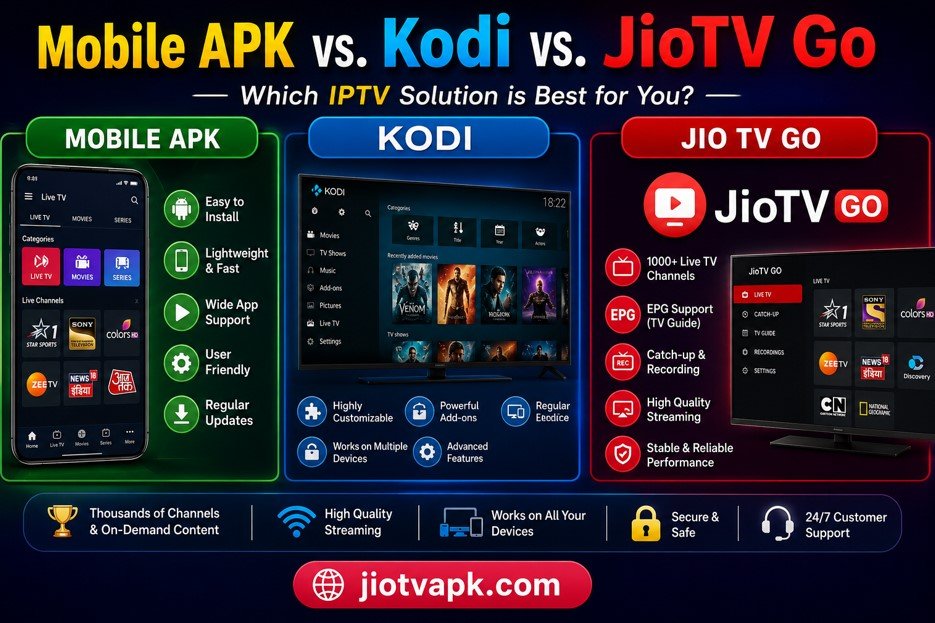
Choosing the right method depends entirely on your technical comfort level and how you prefer to interact with your television.
| Feature | Sideloaded Mobile APK | Kodi Add-on Method | JioTV Go + TiviMate |
| Ease of Installation | Moderate (Requires sideloading) | Easy (All done within TV UI) | Hard (Requires basic coding/Termux) |
| Remote Compatibility | Poor (Requires Mouse Toggle) | Excellent (Native D-Pad support) | Excellent (Built for TV navigation) |
| User Interface | Mobile layout forced horizontal | Basic text menus & grids | Premium cable-style EPG guide |
| Stability | Very High (Official app structure) | High (May break upon API updates) | High (Requires server app running) |
| Best Suited For | Casual viewers with a USB mouse | Users who hate mouse pointers | Tech-savvy cord-cutters |
Pros and Cons of Using JioTV on a Big Screen
While unlocking 1,000 live channels for free is a massive benefit, the unofficial nature of these workarounds comes with a few trade-offs.
Pros:
- Unmatched Variety: Access to sports, movies, news, and kids’ programming across dozens of regional languages.
- Zero Subscription Fees: Entirely free for anyone paying for a standard prepaid or postpaid mobile data plan.
- Time-Shifting: The catch-up feature allows you to watch broadcast television exactly on your own schedule.
- HD Streaming: Major networks are available in crystal-clear High Definition, which looks fantastic on large panels.
Cons:
- Complex Setup: The average user may find sideloading or configuring Kodi intimidating.
- Periodic Logouts: The security servers occasionally refresh login tokens, forcing you to request a new OTP to log back in.
- Clunky Navigation: Unless you use the advanced methods, navigating a mobile UI with a television remote is inherently frustrating.
- No Official Support: If an update breaks the app, you cannot call customer service; you have to wait for the community to provide a fix.
Common Errors and Troubleshooting Tips
Technology is rarely perfect, especially when pushing software outside of its intended boundaries. If you run into issues while using the JioTV APK for Android TV, here are the most common solutions.
“App Not Installed” Error During Setup
If you transfer the APK file and your television refuses to install it, you are likely dealing with one of two issues. First, check your storage space. Smart TVs often have very small hard drives (typically 8GB). If your storage is full, the installation will fail. Delete unused apps and try again. Second, the APK file may have corrupted during the Wi-Fi transfer. Delete the file, re-download it on your phone, and beam it over again.
Video Plays With a Black Screen but Audio Works
This is a highly common issue related to DRM (Digital Rights Management) and hardware acceleration on older televisions. If you can hear the cricket match but only see a black screen, go into your television’s core settings, navigate to Apps, select the streaming app, and hit Clear Cache. Then, force stop the application and restart your television. This usually resets the video decoder.
Login Session Expired / OTP Not Working
To prevent account sharing, the network occasionally revokes active logins. If you open the application and are logged out, do not panic. Simply ensure the SIM card associated with the account is active inside your primary mobile phone. Request a new OTP. If the OTP fails to arrive, toggle airplane mode on your smartphone to refresh your cellular connection, and request the code again.
Geo-Restriction Errors
The broadcasting rights for the content hosted on the platform are strictly limited to the Indian subcontinent. If you are traveling abroad for business or vacation and attempt to open the app, it will block your access. To fix this, you must install a reputable VPN (Virtual Private Network) on your smart television, connect to an Indian server (such as Mumbai or Delhi), and then launch the app.
Best Alternatives to JioTV for Smart TVs
If you have read through this guide and decided that sideloading, mouse toggles, and Kodi repositories are simply too complicated, there are official, hassle-free alternatives you can download directly from your television’s Google Play Store.
- JioCinema: While it does not feature 1,000 live channels, this is the official large-screen application for Reliance users. It offers live IPL cricket, massive movie libraries, and premium HBO content, all optimized perfectly for television remotes.
- Tata Play Binge: If you are willing to pay a subscription fee, Tata Play Binge acts as a massive aggregator, pulling content from over 20+ OTT apps into one seamless, TV-friendly interface.
- YuppTV: For users specifically looking for South Indian regional content (Telugu, Tamil, Malayalam), YuppTV offers an official smart TV app with an excellent selection of live channels.
- Airtel Xstream: The direct competitor to Reliance, Airtel offers its own streaming ecosystem. However, similar to its rival, getting the full live TV experience often requires specific Airtel hardware.
Frequently Asked Questions (FAQs)
1. Is there an official JioTV app available on the Google Play Store for Android TV?
No. The official application is heavily restricted to mobile platforms (Android and iOS). For television screens, the company exclusively supports JioTV+, which is locked to their proprietary set-top box hardware.
2. Do I have to pay a monthly fee to use this service?
No, the streaming service is completely free. However, you must maintain an active prepaid or postpaid mobile recharge plan with Reliance Jio to keep the login credentials valid.
3. Is sideloading the JioTV APK safe for my television?
Yes, it is entirely safe, provided you download the APK installation file from a highly reputable source like APKMirror. Never download files from shady forums or unknown websites, as they may contain modified code or malware.
4. Why is the application screen appearing completely sideways on my TV?
Because you installed a mobile application on a widescreen display. The application is attempting to force portrait mode. You must install a third-party application called “Set Orientation” to force your television screen into a permanent landscape layout.
5. Can I use my normal TV remote to change channels?
If you use the standard sideloaded APK, your remote will not work properly because the app requires touch inputs. You must use a physical computer mouse or a Mouse Toggle software. If you use the Kodi or TiviMate method, your standard remote will work perfectly.
6. Will this process work on an Amazon Fire TV Stick?
Yes. The underlying operating system of the Firestick is based on Android. The process is nearly identical, except you will use the built-in “Downloader” application to fetch the APK file from the internet directly, rather than using Send Files to TV.
7. Can I use the app if I have an Airtel or Vodafone-Idea (Vi) SIM card?
No. The service is strictly walled behind a telecom login. You must have a registered Reliance Jio mobile number to receive the mandatory OTP to access the content.
8. Why does the live stream buffer even when my home internet is incredibly fast?
Buffering on high-speed internet is usually caused by ISP routing issues or limited TV processor RAM. Try clearing the application cache in your television settings. Alternatively, selecting a slightly lower stream quality inside the app settings can instantly fix playback lag.
9. Can I watch live sports like the IPL and World Cup using this method?
Absolutely. The application features comprehensive live sports coverage, including channels like Sports18, Sony Ten, and Eurosport, allowing you to catch every major cricket and football match live.
10. How do I update the app when a new version is released?
Because the app was not installed via the official Play Store, it will not auto-update. When a new version is released, you must manually download the newest APK to your phone, transfer it to your television, and install it over the old version.
Conclusion
Transitioning away from expensive traditional cable subscriptions does not mean you have to sacrifice the luxury of live television. By understanding the flexibility of your smart operating system, you can easily bridge the gap between mobile applications and the big screen.
Installing the JioTV APK for Android TV requires a bit of initial technical legwork. Whether you choose the straightforward sideloading method paired with a mouse toggle, the remote-friendly interface of a Kodi add-on, or the advanced, cable-like perfection of JioTV Go and TiviMate, the reward is massive. Dedicating just 15 to 30 minutes to this setup grants your household free, high-definition access to over 1,000 channels, ensuring you never miss a breaking news broadcast, a daily soap episode, or a live cricket match ever again.