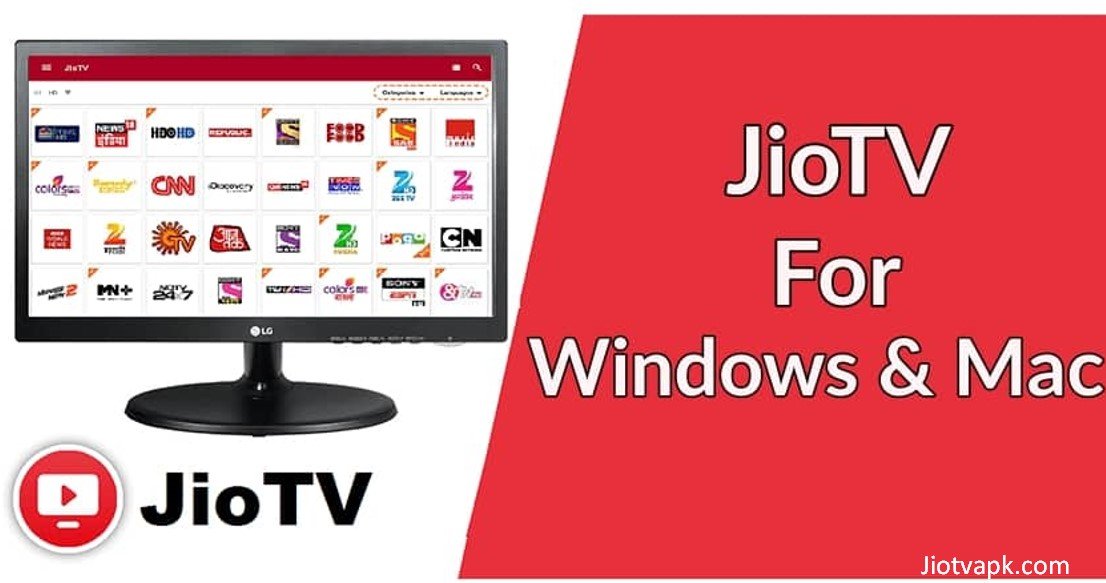
JioTV APK for PC Download: Play Live TV on Windows & Mac
Have you ever wanted to watch your favorite TV shows or live sports on a larger screen while working on your laptop? Millions of internet users in India rely on Reliance Jio for their daily entertainment. The JioTV app completely changed how people watch television by offering hundreds of live channels for free. However, there is one major problem: there is no official JioTV app for Windows computers or MacBooks.
If you try searching for a PC version, you will quickly realize it does not exist. But do not worry. You can still run the mobile application on your computer. By using Android emulators or Windows Subsystem for Android (WSA), you can easily install the JioTV APK for PC.
This comprehensive guide will walk you through everything you need to know. We will cover the best installation methods, system requirements, troubleshooting tips, and alternative options. Let us get started!
What is JioTV?
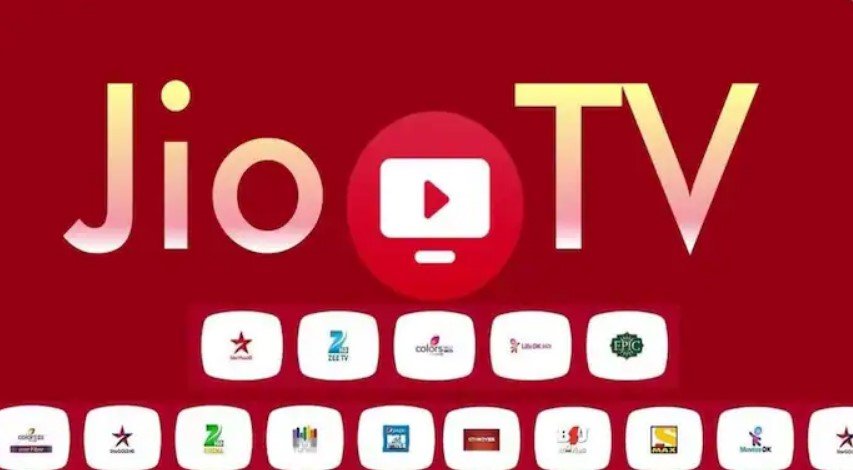
JioTV is an exclusive live television application provided by Reliance Jio. It allows active Jio subscribers to watch live TV channels on their smartphones and tablets. The platform offers a massive library of over 800 television channels, including more than 100 high-definition (HD) options.
Users can browse through various categories such as news, movies, sports, entertainment, music, and kids’ programming. Furthermore, the application supports over 15 regional languages, making it accessible to viewers across India. Whether you want to watch breaking news in Hindi, a blockbuster movie in Tamil, or a cricket match in English, JioTV has you covered.
Why Download JioTV APK for PC?
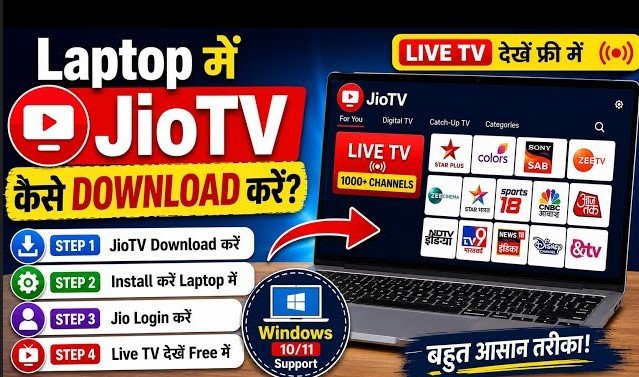
Watching content on a small smartphone screen is convenient when traveling. However, when you are at home or the office, switching to a bigger screen makes sense. Here are the top reasons why users prefer downloading the JioTV APK for PC:
- Bigger Viewing Area: Live sports and action movies simply look better on a 15-inch or 24-inch monitor compared to a 6-inch phone screen.
- Multitasking Capabilities: You can keep the TV app running in the corner of your screen while typing an email or browsing the web.
- Save Mobile Battery: Streaming high-quality video drains smartphone batteries quickly. Using a plugged-in computer eliminates battery anxiety.
- Better Audio Quality: Laptops and desktop speakers generally offer much louder and clearer sound than mobile phone speakers.
- No DTH Recharge Needed: If you already pay for a Jio mobile recharge, you do not need to pay extra for a traditional cable or DTH connection.
Key Features of the JioTV App

Before you start the installation process, it is helpful to know what the application offers. JioTV is packed with user-friendly features:
- 7-Day Catch-Up: Did you miss your favorite daily soap yesterday? JioTV allows you to watch broadcasted shows from the past seven days.
- Pause and Play Live TV: You can pause a live news broadcast or cricket match to grab a snack, then resume exactly where you left off.
- Mini TV (Picture-in-Picture): This feature lets you minimize the video player and browse other channels simultaneously.
- Smart Search: A robust search bar helps you find specific channels, programs, or actors in seconds.
- Multi-Language UI: You can change the entire app language to Hindi, Marathi, Telugu, Bengali, and more.
- Zero Subscription Fees: The app is completely free. You only need an active Jio SIM card and a Jio account to log in.
Minimum System Requirements
To run an Android app on a computer, you need specific hardware capabilities. Emulators create a virtual Android environment, which requires a decent amount of processing power. Before downloading anything, check if your PC meets these requirements:
Minimum Requirements (For basic 480p/720p streaming)
- Operating System: Windows 7, 8, 10, or 11 (64-bit).
- Processor: Intel or AMD Dual-Core Processor.
- RAM: At least 4 GB.
- Storage: 5 GB of free hard disk space.
- Settings: Hardware Virtualization (VT) must be enabled in your computer’s BIOS.
Recommended Requirements (For smooth 1080p HD streaming)
- Operating System: Windows 10 or 11 (64-bit with latest updates).
- Processor: Intel Core i5 / AMD Ryzen 5 or higher.
- RAM: 8 GB or 16 GB.
- Storage: Solid State Drive (SSD) for faster loading times.
- Graphics: Dedicated GPU (Nvidia or AMD) or good integrated graphics (Intel Iris Xe).
Method 1: Install JioTV on PC using BlueStacks
BlueStacks is the most popular and trusted Android emulator globally. It is highly optimized for performance and is very safe to use. Here is how you can install the JioTV APK for PC using this software:
- Download BlueStacks: Open your web browser and visit the official BlueStacks website. Download the latest BlueStacks 5 installer.
- Install the Emulator: Double-click the downloaded .exe file. Click on “Install Now” and wait for the software to extract its files. This may take a few minutes depending on your internet speed.
- Launch and Log In: Once installed, open BlueStacks. You will be prompted to log in to the Google Play Store. Use your standard Gmail account.
- Search for the App: Open the Play Store within BlueStacks. Type “JioTV” in the search bar.
- Install JioTV: Click the “Install” button next to the official JioTV app.
- Alternative APK Method: If you cannot find it in the Play Store, download the JioTV APK file from a trusted site like APKMirror on your Windows browser. Then, drag and drop the APK file directly into the BlueStacks window to install it.
- Log In to JioTV: Open the app, enter your Jio mobile number, verify the OTP, and start watching live TV.
Method 2: Run JioTV on Low-End PCs with LDPlayer
If you have an older laptop with only 4 GB of RAM, BlueStacks might feel a bit slow or laggy. In this case, LDPlayer is a fantastic alternative. It is a lightweight emulator designed to consume fewer computer resources.
- Get LDPlayer: Go to the official LDPlayer website and download version 9 (the most stable version).
- Run the Installer: Follow the on-screen instructions to install LDPlayer on your C: drive.
- Sign in to Google: Launch the emulator and click on the “System Apps” folder. Open the Play Store and sign in with your Google credentials.
- Download the App: Search for JioTV and hit install.
- Configure Settings: To make the app run even smoother, click the gear icon (Settings) in LDPlayer. Lower the resolution to 720p and allocate 2 CPU cores and 2048 MB of RAM.
- Enjoy Streaming: Open JioTV, verify your Jio number via OTP, and enjoy uninterrupted streaming on your older PC.
Method 3: Install JioTV on Windows 11 without Emulators (WSA)
Windows 11 introduced a revolutionary feature called the Windows Subsystem for Android (WSA). This allows your PC to run Android applications natively without downloading heavy third-party emulators. This is the cleanest and fastest method available today.
Note: You must have a Windows 11 PC with Virtualization enabled.
- Enable WSA: Go to the Microsoft Store on your Windows 11 PC. Search for “Amazon Appstore” and install it. This action automatically installs WSA in the background.
- Turn on Developer Mode: Open the Windows Start menu, search for “Windows Subsystem for Android Settings,” and open it. Navigate to the “Developer” tab and toggle “Developer Mode” to ON.
- Download WSA PacMan: To easily install APK files, download an open-source tool called “WSA PacMan” from GitHub. Install this tool on your PC.
- Download JioTV APK: Open your browser and download the latest JioTV APK file from APKPure or APKMirror.
- Install the APK: Double-click the downloaded JioTV APK file. WSA PacMan will open a pop-up asking if you want to install it. Click “Install.”
- Launch from Start Menu: The JioTV app will now appear directly in your regular Windows Start Menu. Click it, log in with your Jio number, and start watching.
Method 4: Use NoxPlayer for Windows and Mac
NoxPlayer is another robust emulator that works exceptionally well on both Windows and Apple Mac computers. If you are a MacBook user, this is one of your best options.
- Download NoxPlayer: Visit the Nox website (bignox.com) and download the appropriate version for Windows or macOS.
- Complete Installation: Run the setup file. Make sure to reject any bundled bloatware or extra software during the installation process.
- Open the Play Store: Launch NoxPlayer, click on the Google folder, and open the Play Store. Log in with your email.
- Install JioTV: You can directly search for JioTV and install it.
- Adjust Screen Orientation: Since JioTV is primarily a mobile app, it opens in a vertical portrait mode. You can click the “Rotate” icon on the right-side toolbar in NoxPlayer to force the app into landscape mode for better video viewing.
Comparison Table: Best Emulators for JioTV
To help you decide which method is best for your specific computer, review this quick comparison table.
| Feature | BlueStacks 5 | LDPlayer 9 | Windows 11 WSA | NoxPlayer |
| Best For | Mid to High-End PCs | Low-End PCs | Windows 11 Users | Mac & Windows |
| RAM Usage | High | Low | Medium | Medium |
| Speed/Performance | Excellent | Very Good | Native/Fastest | Good |
| Setup Difficulty | Very Easy | Very Easy | Hard | Easy |
| Ads/Bloatware | Minimal | Minimal | None | Moderate |
How to Update the JioTV APK on a Computer
Android applications receive regular updates to fix bugs and add new features. If you installed JioTV directly from the Google Play Store within an emulator, it will update automatically. However, if you used the APK sideloading method (like in WSA), you must update it manually.
- Find the Latest Version: Visit a safe APK website (like APKMirror) and check for the newest version of JioTV.
- Download the File: Save the new .apk file to your computer’s Downloads folder.
- Overwrite the Old App: You do not need to uninstall the old version.
- For Emulators: Simply drag and drop the new APK into BlueStacks or LDPlayer. It will overwrite the old app and keep your login data.
- For WSA: Double-click the new APK using WSA PacMan and click “Update.”
- Restart the App: Close the app completely and reopen it to experience the new features.
JioTV vs. JioCinema: What is the Difference?

Many users confuse JioTV with JioCinema. While both belong to Reliance Jio, they serve very different purposes.
JioTV is strictly a Live Television application. It streams traditional TV channels exactly as they are broadcasted on a cable or DTH box. If you want to watch live news, daily serials, or music channels, JioTV is the app you need.
JioCinema, on the other hand, is a Video-on-Demand (VOD) OTT platform. It functions like Netflix or Amazon Prime. You use it to watch movies, web series, and exclusive sporting events like the Indian Premier League (IPL).
Furthermore, JioCinema has an official web version (jiocinema.com). You do not need an emulator to watch JioCinema on a PC; you can simply open your browser. JioTV has no web version, which is why emulators and APK files are necessary.
Pros & Cons of Using JioTV on PC
Using mobile apps on a desktop environment has its advantages and drawbacks. Here is a realistic look at what to expect.
Pros
- Cost-Effective: You get access to premium live TV without paying cable operators.
- Large Display: A much better viewing experience for movies and sports.
- Convenience: Easily switch between work tabs and live television.
- Screen Recording: You can use PC screen recording software to save clips (where DRM allows).
Cons
- Requires High RAM: Emulators can slow down your computer if you have less than 4 GB of RAM.
- Complex Setup: Installing emulators or WSA takes time and technical patience.
- Vertical Interface: The app menu is designed for vertical phone screens, which can feel awkward to navigate with a computer mouse until a video starts playing in landscape mode.
- Occasional Glitches: Emulated apps can sometimes crash or show a black screen.
Troubleshooting Common Errors
If you run into issues while trying to use the JioTV APK for PC, do not panic. Most problems have simple fixes.
1. The Screen Goes Black When Playing a Channel
This is the most common issue. It happens because JioTV uses DRM (Digital Rights Management) protection to prevent screen capturing.
- Fix: Go to your emulator’s settings. Look for the “Graphics” tab. Change the Graphics Rendering mode from “OpenGL” to “DirectX” (or vice versa). Restart the emulator and try again.
2. “Jio Network Required” Error
Sometimes the app refuses to play, stating you must be on a Jio internet connection.
- Fix: Ensure you are logging in with your registered Jio mobile number via OTP. If the error persists, download the “JioSphere” app inside the emulator, sign in there, and then open JioTV.
3. Emulator Lags or Freezes
If the video is buffering or the mouse is moving slowly, your PC is struggling with the emulator.
- Fix: You need to enable Virtualization (VT) in your computer’s BIOS. This single step improves emulator performance by 10x. Also, close heavy background apps like Google Chrome.
4. App Keeps Crashing on Launch
- Fix: Clear the app cache. Go to Android Settings (inside the emulator) > Apps > JioTV > Storage > Clear Cache. If that fails, uninstall the app and download the latest APK file.
Top Alternatives to JioTV
If you do not want to install an emulator, or if you do not own a Jio SIM card, there are other ways to watch live TV on your PC.
- Airtel Xstream: If you are an Airtel user, the Xstream app offers live channels and OTT content. It also has a dedicated web version that runs directly in your PC browser.
- Tata Play Binge: Tata Play subscribers can access live TV channels on their computer browsers through the Tata Play website. You just need your subscriber ID to log in.
- Disney+ Hotstar: Great for live sports (cricket, football) and Star Network TV shows. It works flawlessly on PC browsers.
- Zee5: Ideal for watching Zee network channels and original web series directly on your desktop.
Frequently Asked Questions (FAQs)
1. Is there an official JioTV app for Windows 10 or 11?
No, Reliance Jio has not released an official application for Windows or Mac. The only way to run it on a PC is by using an Android emulator or Windows Subsystem for Android.
2. Is it legal to use Android emulators?
Yes, Android emulators like BlueStacks and LDPlayer are 100% legal. They simply create a virtual Android device on your computer. However, you must use your own legal Jio credentials to access the content.
3. Can I use JioTV on a PC without a Jio SIM?
No. To access the live channels, you must have an active Jio mobile number to receive the login OTP. If you do not have a Jio SIM, the app will not let you stream.
4. Will JioTV consume a lot of data on my PC?
Yes. Watching live TV on a larger screen usually defaults to higher video quality. Streaming HD channels can consume around 1 GB to 1.5 GB of data per hour. Ensure you have an adequate broadband or Wi-Fi plan.
5. How do I watch JioTV in full screen on a PC?
Once you click on a channel and the video starts playing, look for the small square full-screen icon in the corner of the video player. Alternatively, you can press the F11 key in most emulators to enter full-screen mode.
6. Why is JioTV not working on BlueStacks?
If it is crashing, ensure you are using the latest 64-bit version of BlueStacks. Also, clear the app cache, update the JioTV app to the latest version, and make sure Virtualization is enabled on your PC.
7. Can I watch IPL on JioTV?
Currently, Reliance Jio streams the IPL and other major sporting events for free on the JioCinema app, not JioTV. You can simply go to jiocinema.com on your PC browser to watch the matches without any emulators.
8. Does the JioTV app cost money?
No, the JioTV application is completely free to download and use, provided you have an active prepaid or postpaid Jio mobile plan.
9. Can I cast JioTV from my phone to my laptop?
Because of strict DRM protections, JioTV blocks most casting and screen-mirroring software. When you try to cast it, you will likely only see a black screen with audio. Installing the app via an emulator is the only reliable method.
Conclusion
Watching your favorite television channels does not have to be restricted to a small mobile screen. By downloading the JioTV APK for PC, you can transform your laptop or desktop into a fully functional television set.
If you have a powerful computer, BlueStacks remains the most reliable and user-friendly method. For users with older laptops, LDPlayer offers a lightweight alternative that will not slow down your system. Finally, if you are running Windows 11 and want the cleanest setup, utilizing the Windows Subsystem for Android (WSA) is a fantastic, emulator-free solution.
Remember to keep your app updated, enable Virtualization for smooth playback, and use a stable Wi-Fi connection. Follow the steps outlined in this guide, and you will be streaming high-quality live TV on your PC in no time!