JioTV APK for Smart TV: Complete Installation Guide & Setup (2026)
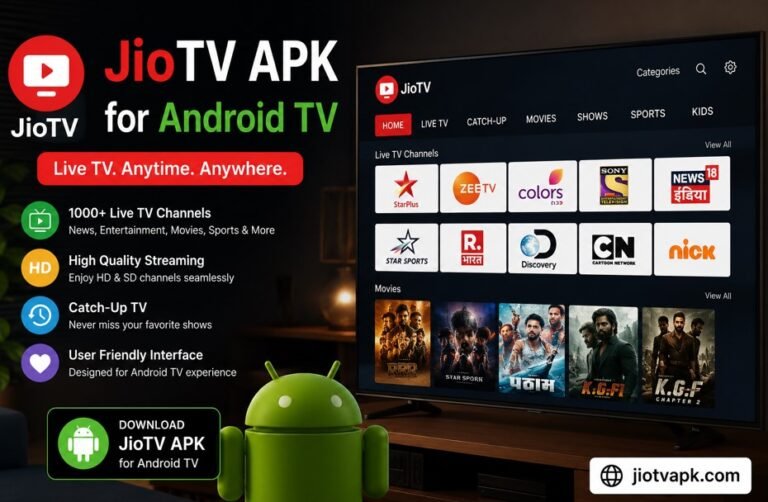
Television consumption in India has undergone a massive transformation. The days of fighting over the remote to switch between limited cable channels are long gone. Today, high-speed internet and advanced smart televisions have put viewers in complete control of their entertainment. Among the most revolutionary platforms driving this change is JioTV. Offering access to over 1,000 live channels across multiple regional languages, sports broadcasts, and catch-up TV features, it has become a staple for millions of smartphone users.
However, a major hurdle exists for users who want to enjoy this massive content library on a larger screen: Reliance Jio has designed the standard JioTV application exclusively for mobile devices. If you search the Google Play Store on your Android TV, you simply will not find the JioTV app.
But does that mean you are stuck watching your favorite cricket matches or daily soaps on a 6-inch mobile screen? Absolutely not. By utilizing a method known as “sideloading,” you can easily install the JioTV APK for Smart TV.
This comprehensive guide will walk you through every technical step required to download, install, and seamlessly navigate the JioTV APK on your large-screen television. Whether you are using a Sony Bravia, Xiaomi Mi TV, OnePlus TV, or a third-party streaming stick like Amazon Fire TV, this article covers all the verified, working methods for 2026.
Why Use JioTV on Your Smart TV?
If you already have a DTH connection or active OTT subscriptions, you might wonder if going through the process of installing JioTV is worth the effort. For Indian consumers, the value proposition provided by this application is unmatched. Here is exactly why migrating this experience to your television is highly beneficial.
Unmatched Channel Variety
JioTV currently offers more than 1,000 live television channels. This extensive catalog covers news, entertainment, movies, kids’ programming, and infotainment. It completely eliminates the need to pay for individual channel bouquets through traditional cable operators.
Premium Sports Broadcasting
For sports enthusiasts, JioTV is a goldmine. The application frequently secures digital broadcasting rights for major cricket tournaments, football leagues, and international athletic events. Watching these high-octane events on a 55-inch 4K Smart TV rather than a smartphone dramatically elevates the viewing experience.
Seven-Day Catch-Up TV
One of the most practical features of the platform is “Catch-Up TV.” If you miss a crucial news debate or an episode of a daily soap, JioTV archives broadcasts for up to seven days. You do not need to record anything manually; the content is waiting for you in the cloud.
Multi-Lingual Content Delivery
India’s linguistic diversity is fully represented on JioTV. Content is categorized meticulously across 15+ regional languages, including Hindi, Tamil, Telugu, Marathi, Bengali, and Malayalam. You can filter channels specifically by your preferred language, creating a highly personalized digital television experience.
Understanding Smart TV Operating Systems
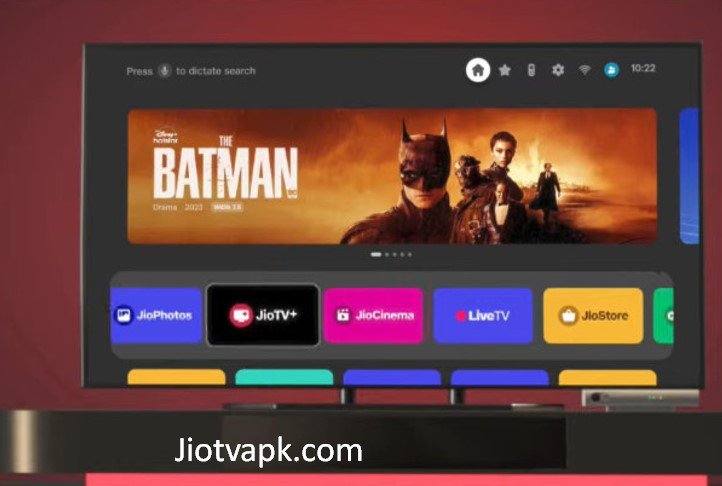
Before attempting to install the JioTV APK, it is crucial to understand the underlying software running your television. Not all smart TVs are created equal, and the sideloading process relies heavily on Android architecture.
Android TV / Google TV OS
Televisions manufactured by Sony, Xiaomi, OnePlus, TCL, and Hisense typically run on Android TV or the newer Google TV interface. Because these operating systems are built on the same foundational code as Android smartphones, installing mobile APK files is generally straightforward. This guide is primarily tailored for these devices.
Amazon Fire OS
Amazon Fire TV Sticks and Fire Edition TVs run on Fire OS, which is a customized, “forked” version of Android. Fortunately, Fire OS supports third-party APK installation perfectly, meaning you can easily sideload JioTV using similar methods.
Tizen (Samsung) and WebOS (LG)
If you own a Samsung Smart TV (Tizen OS) or an LG Smart TV (WebOS), you cannot install Android APK files natively. These are closed, proprietary operating systems. For Samsung and LG owners, the only way to get JioTV on the screen is by connecting an external Android TV Box or Amazon Firestick via the HDMI port, or by mirroring your smartphone screen.
The Interface Challenge: Mobile App vs. TV Screen
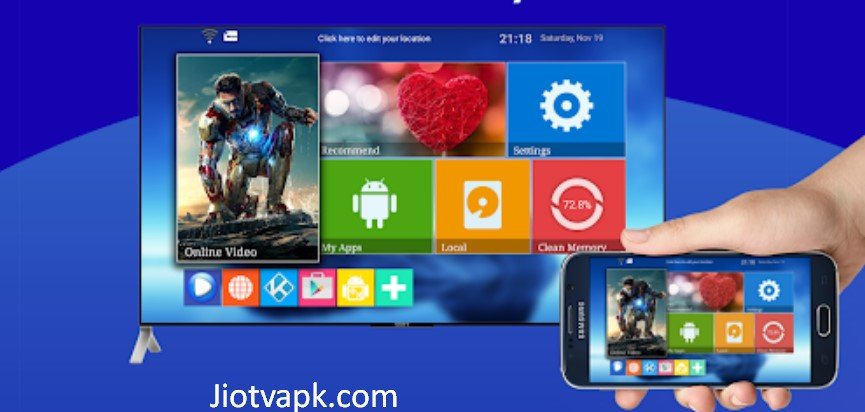
When you install an application built for a mobile phone onto a television, you will immediately notice a fundamental disconnect in user experience. Understanding this limitation beforehand will save you hours of frustration.
Touch vs. D-Pad Navigation
Mobile applications are programmed for touchscreens. They expect the user to tap, swipe, and pinch to zoom. Your smart TV remote, however, relies on a D-Pad (Up, Down, Left, Right, Select). Because the JioTV APK does not natively map to D-Pad commands, you will likely find that you cannot scroll through the channel list or click on specific menus using your standard remote control.
Display Aspect Ratio
Smartphones are generally used in portrait (vertical) mode, while televisions are strictly landscape (horizontal). When you open the mobile version of JioTV on a TV, the app may stubbornly launch sideways, distorting the picture or failing to fill the screen properly.
To solve these two massive interface hurdles, we must rely on secondary utility applications—specifically, Mouse Toggle apps and Screen Orientation control apps. We will cover how to implement these solutions later in this guide.
Prerequisites for Sideloading JioTV
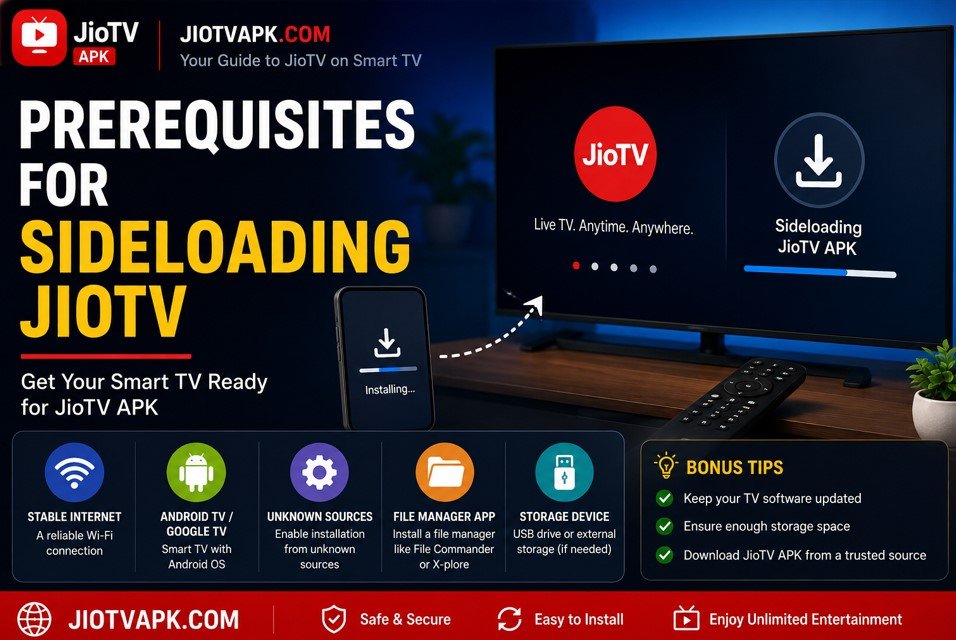
To install software outside of the official Google Play Store, you must temporarily bypass your television’s default security restrictions. Follow these steps to prepare your Android TV for the APK installation.
Step 1: Enable Developer Options
- Navigate to the Settings menu on your Smart TV.
- Scroll down and select Device Preferences (or “System” on Google TV).
- Click on About.
- Scroll down until you highlight the Android TV OS Build (or simply “Build”).
- Press the “OK” or “Select” button on your remote 7 times rapidly.
- A toast notification will appear reading, “You are now a developer!”
Step 2: Allow Unknown Sources
- Return to the main Settings menu.
- Go to Apps > Security & Restrictions.
- Locate the Unknown Sources option.
- You will see a list of applications (like your web browser or file manager). Toggle the switch to ON for the specific app you plan to use for downloading or transferring the APK (such as Downloader or Send Files to TV).
Step 3: Secure the JioTV APK File
You will need the actual installation file. Since it is not on the TV Play Store, use your smartphone or PC to download the latest JioTV APK from a highly trusted repository like APKMirror, Aptoide, or Uptodown. Avoid shady websites to ensure the file is free of malware. Save this file to an easily accessible folder.
Method 1: Sideloading via the “Downloader” App
The easiest and most popular way to install third-party applications on both Android TV and Firestick is by using the “Downloader” application by AFTVnews. It combines a web browser and a file manager into one seamless tool.
Step-by-Step Instructions:
- Open the Google Play Store on your Smart TV.
- Search for the app named Downloader (look for the orange icon with a download arrow).
- Install and launch the application.
- Upon opening, grant the app permission to access media and files.
- In the Home tab of the Downloader app, you will see a URL/Search bar.
- If you have a direct shortcode or URL for a trusted JioTV APK repository, enter it here. (Alternatively, you can type in apkmirror.com and use the built-in browser to search for JioTV manually).
- Click Go to initiate the download.
- Once the APK file finishes downloading, the Downloader app will automatically prompt you to install it.
- Click Install.
- Once completed, click Done. Do not open the app yet, as we need to set up navigation tools first.
Method 2: Sideloading via USB Flash Drive
If you prefer keeping your TV completely secure from unauthorized web browsing, the traditional USB transfer method is highly reliable, provided your TV has a functional USB port.
Step-by-Step Instructions:
- On your PC or laptop, navigate to a secure APK website and download the latest version of the JioTV APK.
- Insert a standard USB Flash Drive (formatted to FAT32) into your computer.
- Copy the JioTV APK file into the root folder of the flash drive.
- Safely eject the USB drive from your computer and plug it into the USB port on the back or side of your Smart TV.
- On your TV, open the Google Play Store and download a file manager app like Solid Explorer or FX File Explorer.
- Open the file manager and navigate to your external USB storage.
- Locate the JioTV APK file and click on it.
- The Android package installer will launch. Click Install.
- Wait for the confirmation message and exit back to the home screen.
Method 3: Using “Send Files to TV” (Smartphone Transfer)
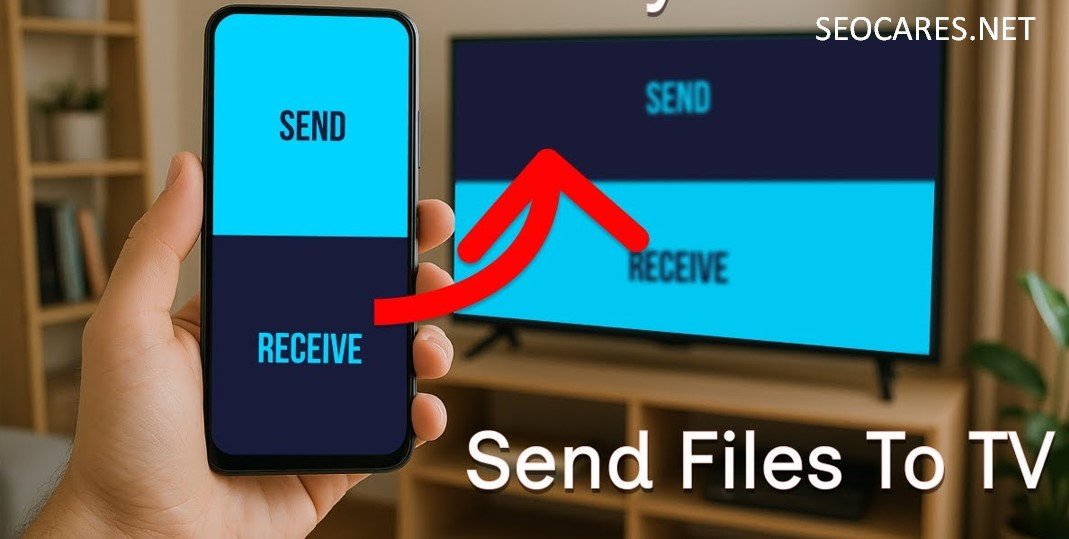
This method is incredibly convenient because it requires no USB drives and avoids clumsy TV web browsing. You simply push the file from your Android smartphone directly to your television over your home Wi-Fi network.
Step-by-Step Instructions:
- Ensure both your Android smartphone and your Smart TV are connected to the exact same Wi-Fi network.
- Download the app Send Files to TV (SFTV) from the Play Store on both your smartphone and your TV.
- Download a file manager (like Solid Explorer) on your TV.
- On your smartphone, use Google Chrome to download the JioTV APK from a safe repository.
- Open the SFTV app on your Smart TV and select Receive. The TV will now actively listen for incoming files.
- Open the SFTV app on your smartphone and select Send.
- Navigate to your phone’s “Downloads” folder, select the JioTV APK, and choose your TV from the list of available devices on the network.
- The transfer will happen instantly.
- On your TV, open your installed File Manager, navigate to the “Downloads” folder, click on the JioTV APK, and select Install.
Method 4: The Kodi Add-on Method
If you already use Kodi as a media center on your Smart TV, there is a community-developed method to integrate JioTV directly into the Kodi interface. This bypasses the mobile UI issues entirely, though it requires a bit more technical configuration.
Step-by-Step Instructions:
- Install Kodi from the Google Play Store on your Smart TV.
- Open Kodi and navigate to Settings (gear icon) > File Manager.
- Click on Add Source, click on <None>, and enter a trusted repository URL that hosts the JioTV video add-on.
- Name the media source “JioTV” and click OK.
- Go back to Settings and click on Add-ons > Install from zip file.
- Note: You must have “Unknown Sources” enabled within Kodi settings for this to work.
- Select the JioTV source you just named, find the repository zip file, and install it.
- Next, go to Install from repository, find the newly added repository, navigate to Video Add-ons, and select Jio TV.
- Click Install.
- Once installed, go to Add-on settings and choose Setup simple IPTV PVR to load the channels.
- Finally, click on Accounts/Login, enter your Jio mobile number, and submit the OTP to authenticate your session.
Disclaimer: Unofficial Kodi add-ons are community-maintained and may temporarily break when Jio updates their backend infrastructure.
Mastering Navigation: The Mouse Toggle Setup
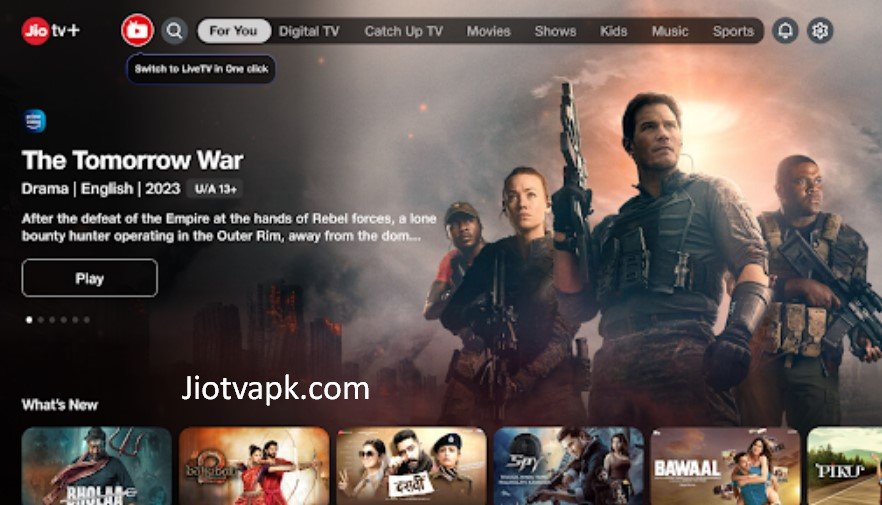
As discussed earlier, the JioTV APK is designed for touch inputs. Standard remote controls will fail to scroll past the first few channels or click specific categories. To solve this, you have two distinct options.
Option A: Use a Physical Wireless Mouse (Highly Recommended)
The absolute easiest, most frustration-free way to use JioTV on a Smart TV is to plug a cheap, wireless computer mouse into your television’s USB port.
- A cursor will immediately appear on your TV screen.
- You can left-click to select channels.
- You can click-and-drag to simulate swiping and scrolling through the channel list.
This perfectly mimics touch controls without requiring complex software setups.
Option B: Install a Mouse Toggle Application
If you do not want an extra peripheral cluttering your living room, you must install a software solution known as Mouse Toggle.
- Using the Downloader app (Method 1), search for the Mouse Toggle for Android TV APK.
- Download and install the application.
- Open Mouse Toggle and enable the two main settings: Enable the mouse service and Auto start on boot.
- You will need to go into your TV’s Device Preferences > Accessibility settings and turn the Mouse Toggle accessibility service ON.
- Once configured, you can activate a virtual mouse cursor on your screen by quickly double-tapping the Play/Pause button (or Volume Down, depending on the TV) on your standard remote control.
- Use the D-Pad to move the cursor and the Select button to click, allowing you to navigate the JioTV interface.
Fixing Screen Orientation Issues
Because the app is built for phones, it may try to force your TV screen into a vertical layout, creating massive black bars on the sides of the screen.
The Solution:
- Sideload a utility app called Set Orientation using the Downloader app or SFTV method.
- Open the Set Orientation application.
- You will see a single drop-down menu.
- Click it and select Landscape.
- Click OK and exit.
This forces your TV’s operating system to override the JioTV app’s request, locking it permanently into a fullscreen horizontal view that perfectly fits your television.
Sideloaded JioTV vs. Official JioTV+ (Jio Set-Top Box)
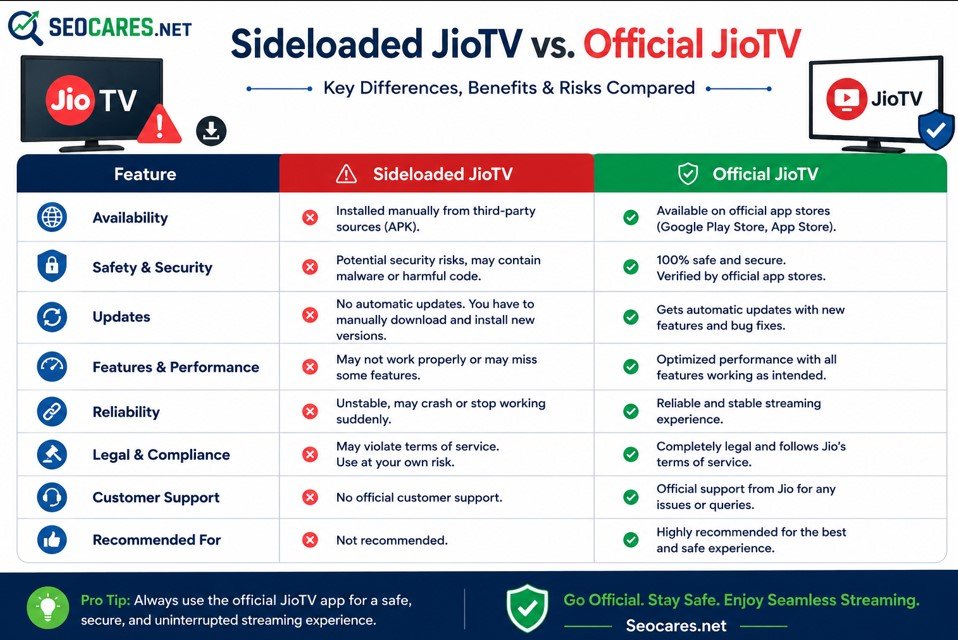
It is important to clarify the official ecosystem. Reliance Jio actually does have a dedicated television application, but it is heavily restricted.
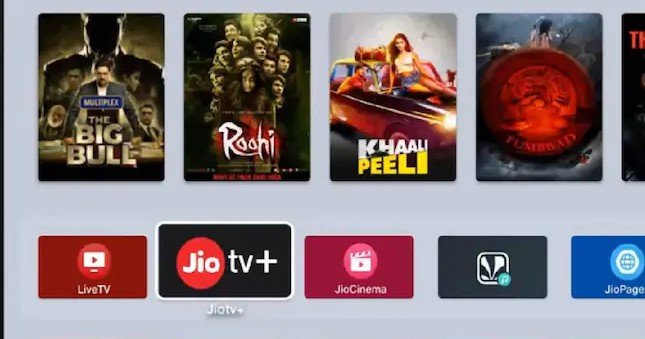
What is JioTV+?
JioTV+ is the official smart TV application designed for users who purchase a JioFiber broadband connection bundled with the physical Jio Set-Top Box (STB).
- It features a native TV interface designed for D-pad remotes.
- It aggregates content not just from Live TV, but also from partner OTT apps like Hotstar, SonyLIV, and Zee5 under one unified search menu.
Why Sideloading is Necessary for Most
You cannot download JioTV+ on a standard Android TV (like a Sony or Xiaomi TV) because it is hardware-locked to the Jio STB. Therefore, if you do not want to switch your internet provider to JioFiber or clutter your TV cabinet with another physical box, sideloading the mobile JioTV APK remains the only viable alternative.
Comparison Table: JioTV on Different Platforms
Here is a quick breakdown to help you understand the varying experiences of JioTV based on your hardware.
| Feature | Sideloaded JioTV APK | Official JioTV+ (Jio STB) | Screencasting from Mobile |
| TV App Store Availability | No | Pre-installed on STB | N/A |
| Remote Control Support | Requires Mouse/Toggle | Full D-Pad Support | Controlled via Phone |
| Interface Layout | Mobile UI (Requires Tweaks) | Native TV UI | Mirrors Mobile Screen |
| Video Quality | Up to 1080p | Up to 4K (If supported) | Compressed via Wi-Fi |
| Hardware Required | Any Android Smart TV | Jio Set-Top Box | Smartphone & Smart TV |
| Cost | Free (Needs Jio Sim) | Bundled with JioFiber Plan | Free (Needs Jio Sim) |
Troubleshooting Common JioTV Errors on Smart TV
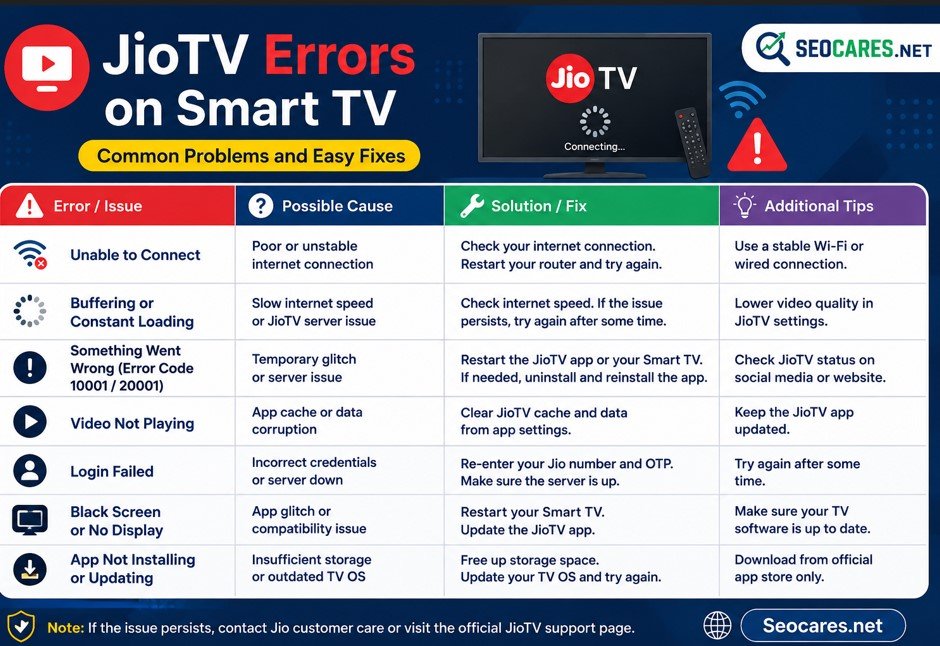
Even with a perfect installation, mobile apps running on TV hardware can occasionally glitch. Here are the most common issues and how to fix them.
1. “Login Failed” or OTP Not Receiving
Ensure you are using an active Jio mobile number to log in. If the OTP fails to generate, clear the app cache. Go to Settings > Apps > JioTV > Clear Cache, force stop the app, and try again.
2. The App Crashes Immediately Upon Opening
This usually indicates an architecture mismatch. Smart TVs have different processors (32-bit vs 64-bit). If the APK you downloaded crashes, go back to the APK repository and try downloading an older version (e.g., version 6.x instead of 7.x) to find a stable build compatible with your TV’s processor.
3. Constant Buffering on High-Speed Internet
Smart TVs often have weaker Wi-Fi receivers than smartphones. If the channel is buffering, try switching your TV’s connection from a 2.4 GHz Wi-Fi band to a 5 GHz band. If possible, connect an Ethernet cable directly to the television for uninterrupted streaming.
4. “App Not Installed” Error
This occurs when the TV runs out of internal storage. Smart TVs generally have very low storage capacities (often just 8GB total). Delete unused games and clear cached data from other apps before attempting the installation again.
Top Alternatives to JioTV for Large Screens
If setting up a mouse toggle and sideloading feels too cumbersome, you can achieve a similar large-screen entertainment experience using native Android TV applications available directly on the Play Store.
- JioCinema: Unlike JioTV, JioCinema has an official, beautifully designed Smart TV app. It focuses heavily on movies, web series, and live sports (such as the IPL), making it a stress-free alternative for on-demand content.
- Tata Play Binge: If you are willing to pay for a subscription, this app acts as an aggregator. It offers an excellent TV-optimized interface that combines live channels and OTT platforms seamlessly.
- YuppTV: A fantastic official app for regional live TV channels, particularly strong in South Indian content. It is fully optimized for remote controls.
- OTT Subscriptions: Individual apps like Disney+ Hotstar, SonyLIV, and Zee5 all have native smart TV applications that offer their own live TV channel broadcasts without the need for mouse toggles.
Pros & Cons of Sideloading
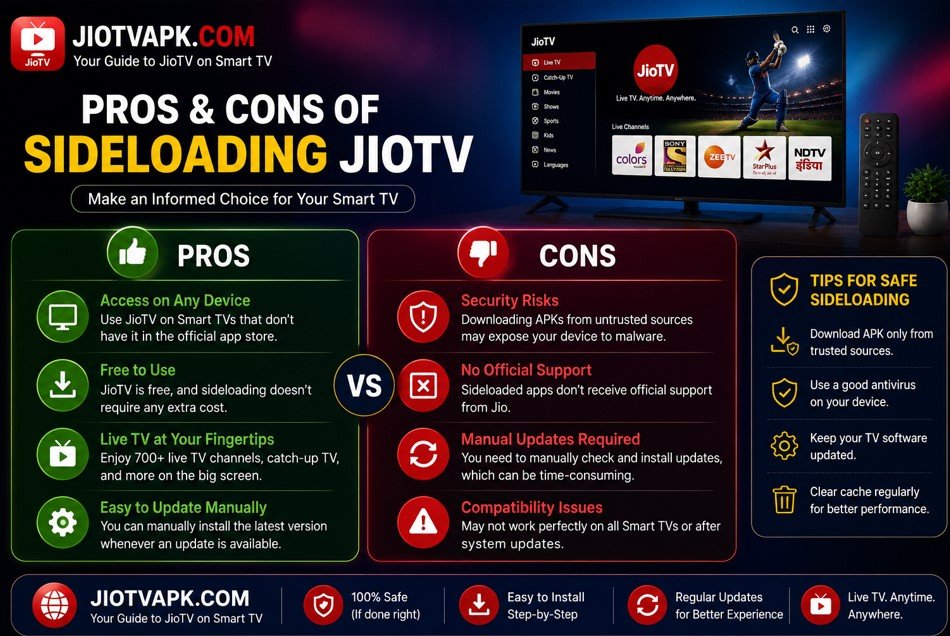
Before you commit to this process, weigh the benefits against the technical friction.
Pros:
- Absolute free access to 1,000+ live TV channels using just your Jio login credentials.
- Eliminates the need for a physical cable or DTH set-top box.
- Provides access to extensive regional content and 7-day catch-up TV.
Cons:
- The user interface is awkward without a physical mouse.
- The application does not update automatically; you must repeat the sideloading process every few months when Jio forces a version update.
- Navigating live channels feels slightly slower compared to a traditional DTH remote.
Frequently Asked Questions (FAQs)
1. Is sideloading the JioTV APK legal and safe?
Yes, sideloading itself is a built-in Android feature intended for developers. As long as you download the APK from a reputable, virus-scanned source like APKMirror, it is perfectly safe. However, using the app outside its intended mobile environment is a workaround, not an officially supported feature by Reliance Jio.
2. Can I use JioTV on my Smart TV if I do not have a Jio SIM card?
No. JioTV is an exclusive service for Reliance Jio subscribers. To log into the application, you must generate and submit an OTP sent to an active Jio mobile number.
3. Does the JioTV APK support 4K streaming on Smart TVs?
No. The mobile application currently caps resolution at 720p or 1080p (HD) depending on the channel broadcast. You will not get native 4K resolution from the sideloaded mobile APK.
3. Why is my standard TV remote not working inside the app?
Because the app is coded for touchscreens. Standard TV remotes send D-Pad signals, which the app doesn’t recognize as a “finger swipe” or “tap.” You must use a connected USB mouse or a Mouse Toggle app to interact with the interface.
4. How do I update the sideloaded JioTV app?
Because you installed it outside of the Google Play Store, it will not update automatically. When the app prompts you for a mandatory update, you must delete the current version, download the newest APK to your TV using Downloader or SFTV, and install it manually.
5. Does JioTV work without an internet connection?
No. JioTV is an internet-based IPTV streaming service. You need a consistent, stable broadband or mobile hotspot connection to stream live television; it does not rely on satellite signals.
6. Can I install this on a Samsung or LG Smart TV?
Not directly. Samsung runs on Tizen OS and LG uses WebOS. Neither supports Android APK files. You must purchase an Android TV box or an Amazon Firestick and plug it into your TV’s HDMI port to use this method.
8. Why are there black bars on the sides of my screen?
The app is trying to run in portrait mode (like a phone). You need to sideload a screen rotation app like “Set Orientation” and force the system into a Landscape layout.
9. Can I cast JioTV from my phone to the TV instead?
Yes, but with limitations. You can use your phone’s screen mirroring or Smart View feature to duplicate your display onto the TV. However, this drains your phone battery quickly, prevents you from using your phone for other tasks, and often suffers from lag or aspect ratio issues.
10. Do I have to pay a monthly fee for JioTV?
The JioTV application is completely free of charge, provided you have an active, valid recharge plan on your Jio mobile number. The data consumed while watching, however, will be deducted from your Wi-Fi or mobile data allowance.
Conclusion
Transitioning your live television viewing from a traditional cable box to a Smart TV utilizing the JioTV platform is a fantastic way to cut costs and consolidate your entertainment devices. While Reliance Jio currently restricts their official TV-optimized app to their proprietary Set-Top Box ecosystem, the flexibility of the Android operating system ensures that users are never truly locked out.
By taking the time to enable developer options, sideloading the JioTV APK using the Downloader or SFTV method, and configuring a physical mouse or Mouse Toggle application, you can unlock over a thousand channels on the biggest screen in your home.
While the initial setup requires a bit of technical patience, the reward is a massive, diverse, and completely free digital content library. Keep your APK files updated, ensure a stable internet connection, and enjoy the ultimate cord-cutting experience.